Meta Business Verification is how Meta confirms that the business behind your WhatsApp Business API number is real. It's free, it takes about 15 minutes to submit, and it happens in one place: the Security Centre in Meta Business Suite. This guide walks through every screen, for both cases Meta handles differently: a business Meta can find in official records, and one it can't (or one that isn't registered yet).
The short answer
- Where: Meta Business Suite → Settings → Security Centre → Start verification. Only an admin of the business portfolio can do it.
- What you need: your legal business name, registered address, a phone number that can receive a code, a website on your own domain and, in India, a GST certificate, Udyam (MSME) certificate or certificate of incorporation.
- Two paths: if Meta finds your business in public records, you pick it and confirm your identity with an ID. If it doesn't, you upload documents and confirm by email, phone, SMS, WhatsApp or domain.
- How long: the Security Centre says about two working days. Some reviews finish in minutes; Meta allows itself up to 14 working days.
- Most rejections are mismatches: the name, address or phone number on your document doesn't match what you typed.
Why verify your business for WhatsApp?
Verification isn't needed to send your first message, but it unlocks things a growing business wants:
- A higher messaging limit. New business portfolios can start conversations with 250 customers a day. Verification is one of the routes to 2,000 a day.
- The blue verified badge. An Official Business Account requires a verified business portfolio.
- Trust with Meta. Some Meta features are only available to verified businesses, and a verified portfolio is harder for someone else to impersonate.
Before you start: what to keep ready
| You'll need | Tip |
|---|---|
| Admin access to the business portfolio | Employees and partners can't start verification. |
| Legal business name | Exactly as printed on your registration documents, including "Pvt Ltd" or "LLP". |
| Registered address | The same address that's on your documents. |
| A phone number | It must be able to receive a confirmation code. |
| A website on your own domain | Not a Facebook, Instagram or Linktree page. Put your legal name in the footer. |
| An email on that domain | For example accounts@yourbusiness.in, not Gmail or Yahoo. |
| One or two business documents | GST certificate, Udyam (MSME) certificate, certificate of incorporation, business PAN, shop and establishment licence. |
| A government photo ID | For the person representing the business, if Meta asks for it. |
Step 1: Open the Security Centre
Log in to Meta Business Suite with an admin profile and go to Settings. In the left menu, scroll down and click Security Centre.
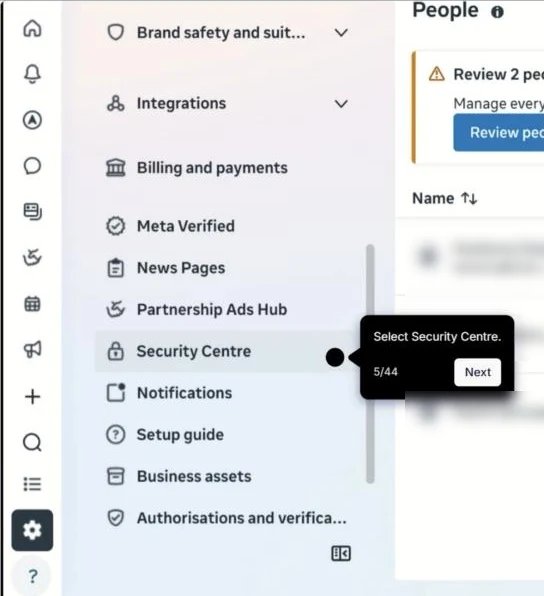 Settings → Security Centre in Meta Business Suite.
Step 2: Click Start verification
In the Business verification box, choose the use case Setting up a WhatsApp Business account, then click Start verification.
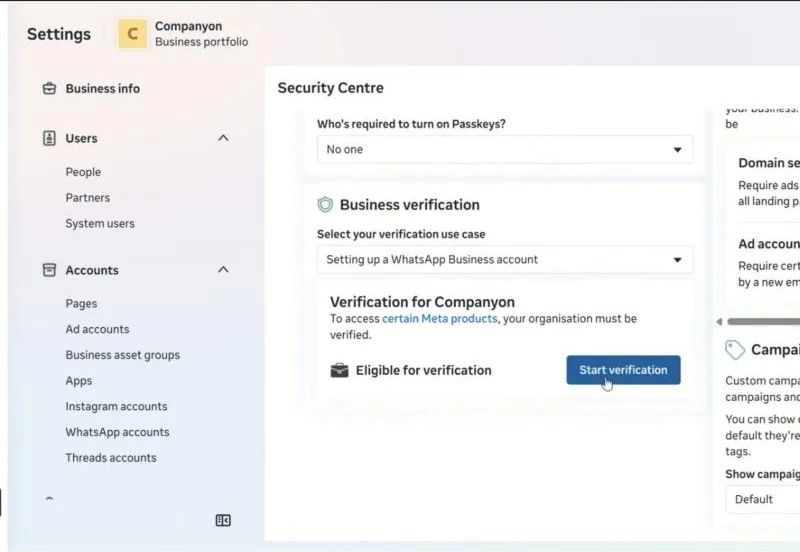 Pick the WhatsApp use case, then click Start verification.
No button, or "Ineligible for verification"? Meta only shows the button when your portfolio uses something that needs verification. Usually your WhatsApp number is connected to a different business portfolio, or not connected yet. Check you're in the portfolio that owns your WhatsApp Business Account, or connect your number to the API first.
Step 3: Select your country
Choose the country where your business is registered. Meta uses it to decide which registration numbers and documents it accepts, so pick the country on your documents, not where you happen to be.
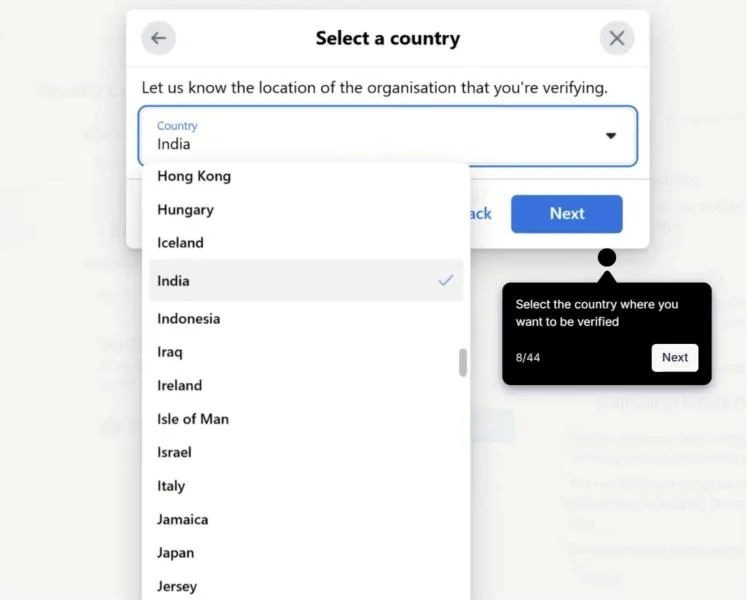 Pick the country your business is registered in.
Step 4: Choose your business type
Pick the structure that matches your registration: corporation, sole proprietorship, partnership, private company or institution. A "Pvt Ltd" company is a private company; a single-owner shop trading under its own name is a sole proprietorship.
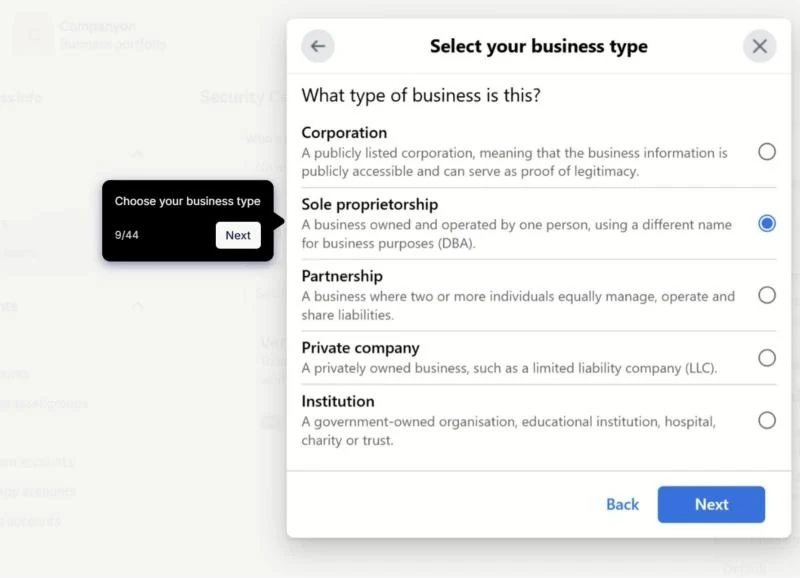 Choose the type that matches your registration documents.
Step 5: Say whether your business is registered
Meta then asks whether your business is officially registered. Your answer decides which path you follow:
- Registered: you have official registration documents, such as a GST certificate or business PAN. Follow Path A.
- Not yet registered: the business isn't registered, or it's run by an individual. Follow Path B. Path B is also where you end up if you choose Registered but Meta can't find a matching record.
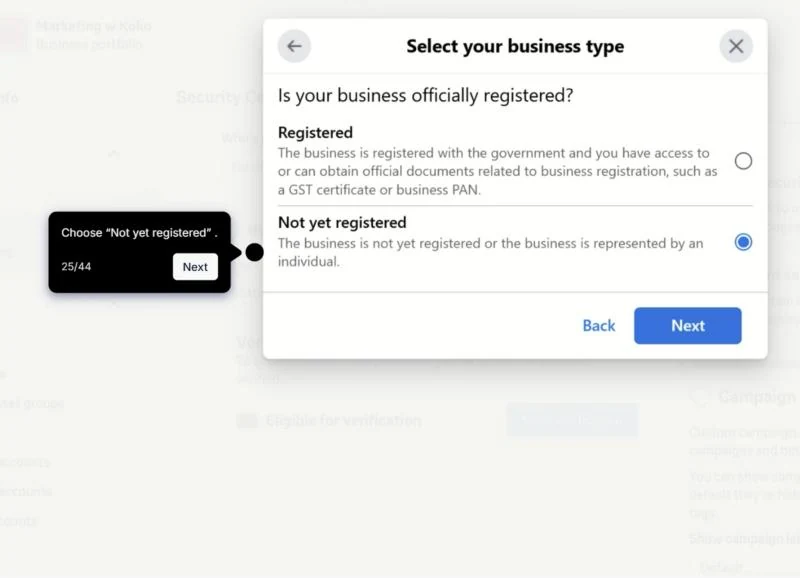 Registered leads to Path A; Not yet registered leads to Path B.
Path A: Verify a registered business
A1. Enter your business details
Type your Business Tax ID / Registration Number. In India, that can be your GSTIN, Udyam number, PAN, CIN or LLPIN. A registration number gives Meta the most accurate match.
Then enter your business name exactly as it appears on your documents. If customers know you by a different trade name, add it as the alternative business name (optional).
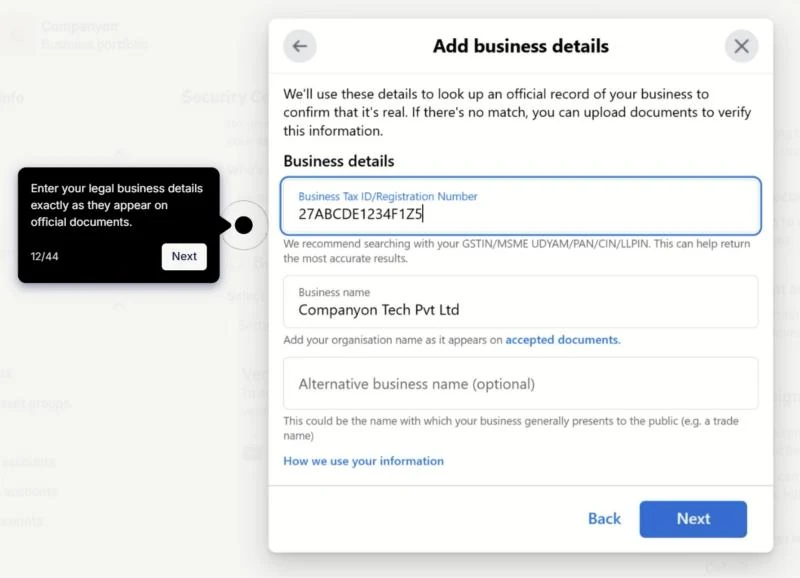 Enter your registration number and legal business name.
A2. Add your address
Enter the address exactly as it appears on your registration documents: street, town or city, state and PIN code. A different branch address is one of the most common reasons Meta can't match you.
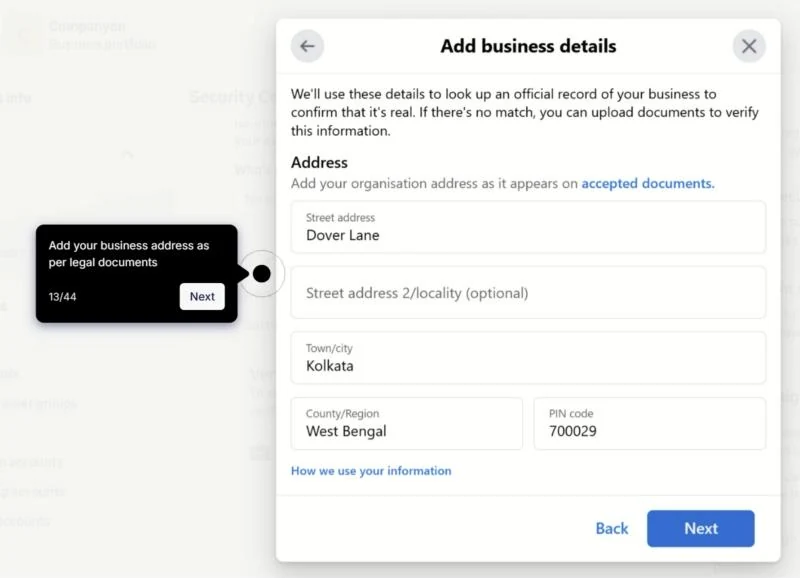 Use the address printed on your documents.
A3. Add your phone number and website
Add a phone number that can receive a confirmation code, and your company website on its own domain. Meta doesn't accept a social media page as your website.
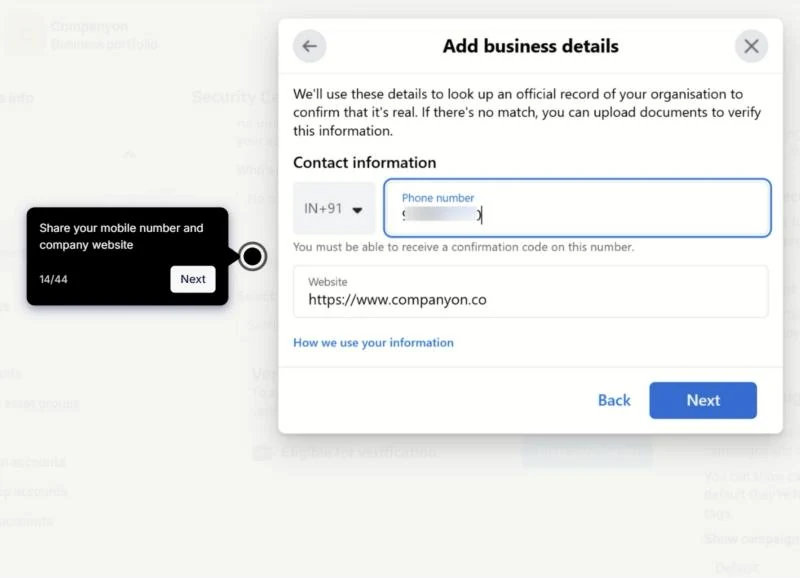 The phone must receive a code; the website must be your own domain.
Click Next, then confirm it's you with your Facebook password if Meta asks.
A4. Select your business from Meta's results
Meta searches public records and shows the businesses that match. If yours is listed with the correct name and address, select it and click Next.
If it isn't listed, or the details are wrong, select My business isn't listed and continue with Path B to upload documents instead.
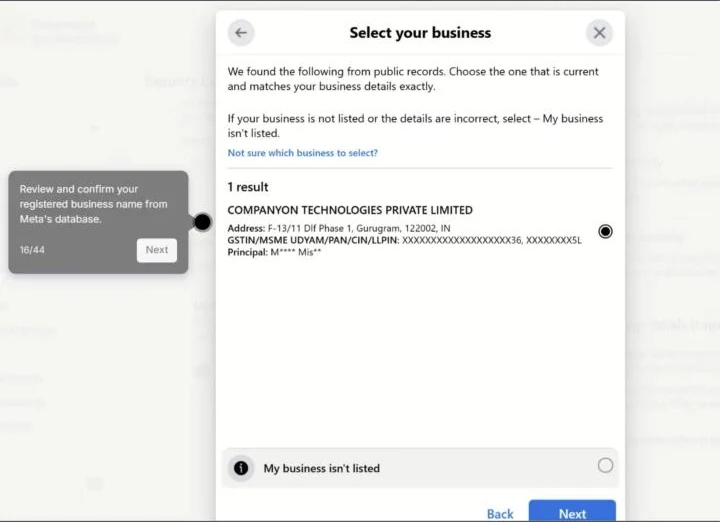 Pick your business, or choose My business isn't listed.
A5. Confirm your identity
Meta may ask you to confirm the person connected to the business. Select the representative, then choose the type of ID to upload, such as a passport, driving licence or national ID card, and upload a clear photo of it following Meta's guidelines.
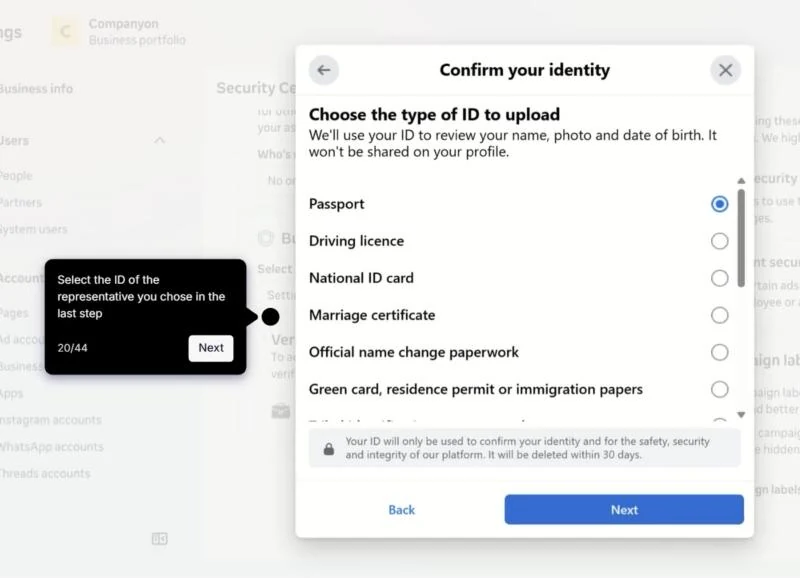 Choose an ID type, then upload a clear photo of it.
A6. Submit
That's it. Meta shows Identity confirmation in progress and says it usually reviews within 48 hours. Click Finished.
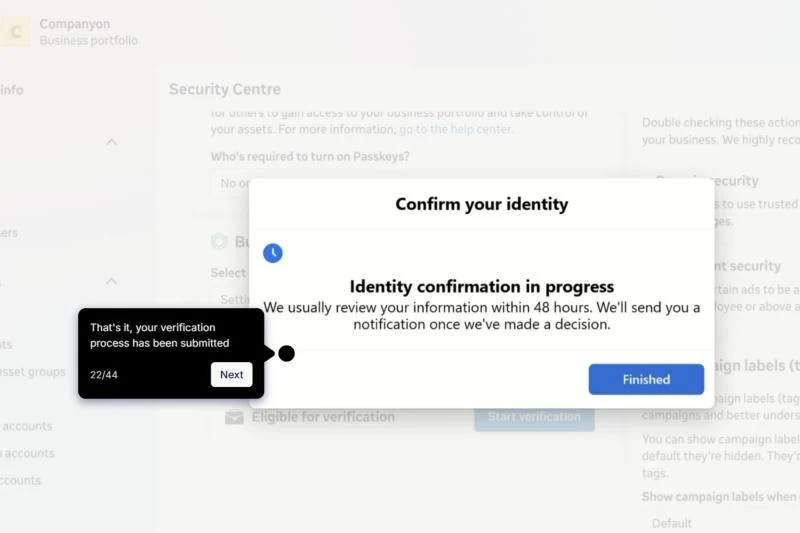 Your request is submitted. Meta notifies you when it decides.
Path B: Verify by uploading documents
Use this path when your business isn't registered yet, when Meta can't find it in public records, or when the record it shows is wrong. The first screens are the same as Path A: country, business type, then Not yet registered, then your business details, address, phone number and website.
B1. Choose how to confirm your connection
Meta asks how you want to prove you're connected to the business. You'll finish this step after uploading documents. The options are:
- Email (recommended): a code to an address on your business domain. It's usually the quickest.
- Phone call, SMS or WhatsApp message: a code to the business phone number you entered.
- Domain verification: use a domain you've already verified in Meta Business Suite.
Your choice decides what your documents must show. For email, they must show your legal name and address or phone number. For phone, SMS or WhatsApp, they must show your legal name and that phone number.
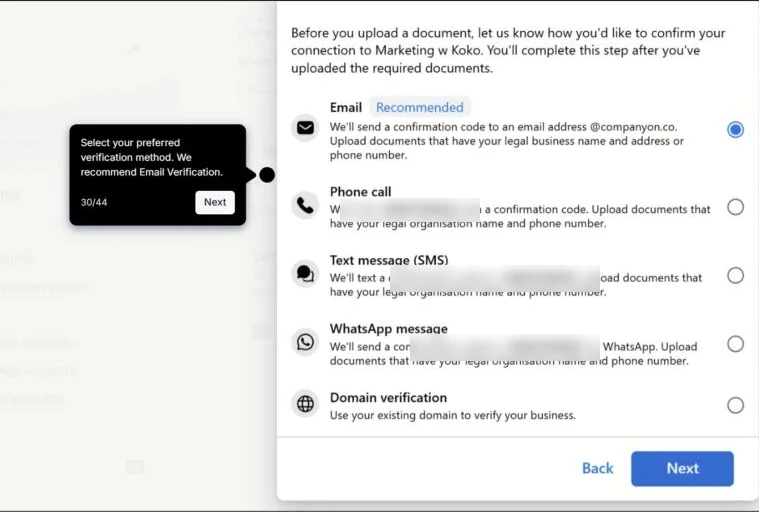 Email verification is usually the fastest.
B2. Upload a document for your legal business name
Meta lists the document types it accepts for your country. In India, recommended options include the certificate of incorporation, the Udyam registration certificate (MSME) and the GST registration certificate. The document must show your full legal business name and must not be expired. Accepted formats are JPG, PNG and PDF.
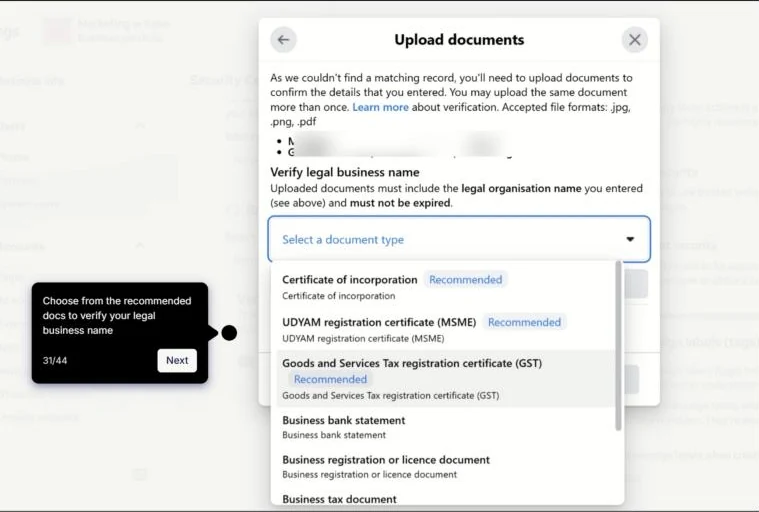 Pick a recommended document that shows your full legal name.
B3. Upload a document for your address or phone number
Next, upload a document that shows your legal business name together with the address or phone number you entered. You can upload the same document again if it shows both. Use a current document, and avoid utility bills where you can: they're often in someone else's name or out of date, and get rejected.
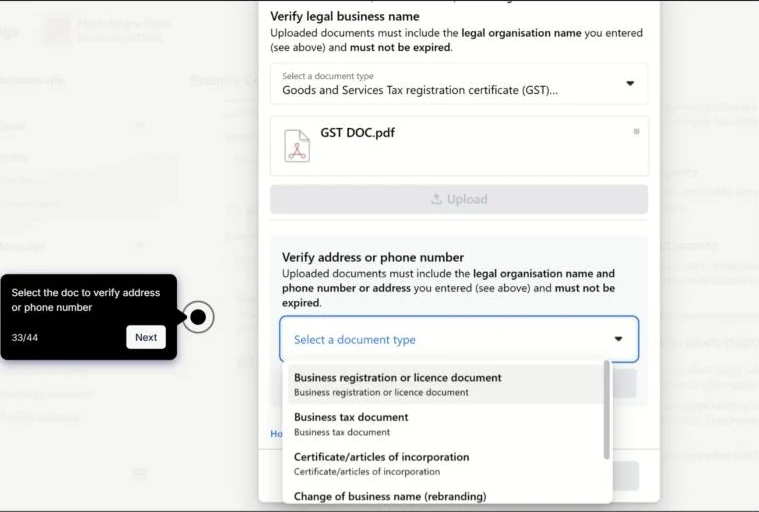 The document must show your legal name and the address or phone number you entered.
B4. Enter your business email
If you chose email, enter an address on your business domain (you@yourbusiness.in). Meta rejects free addresses such as Gmail or Yahoo here. Click Send email.
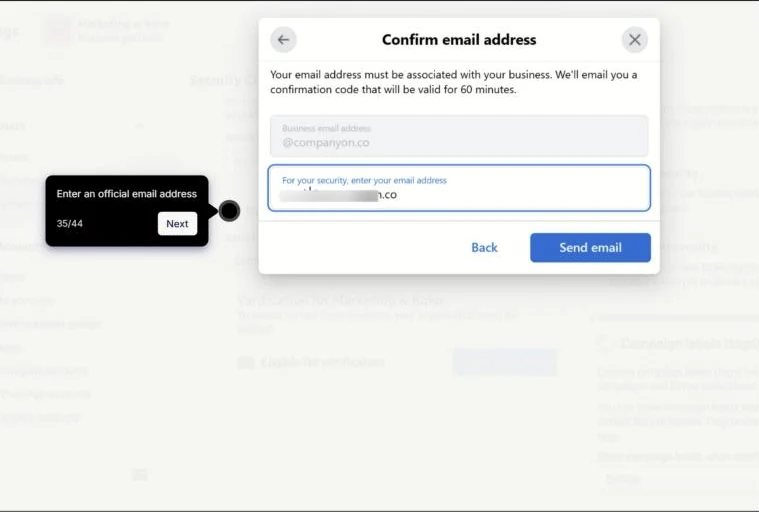 Use an email address on your own domain.
B5. Enter the confirmation code
Meta emails you a code that's valid for 60 minutes. Enter it and click Next to submit your request.
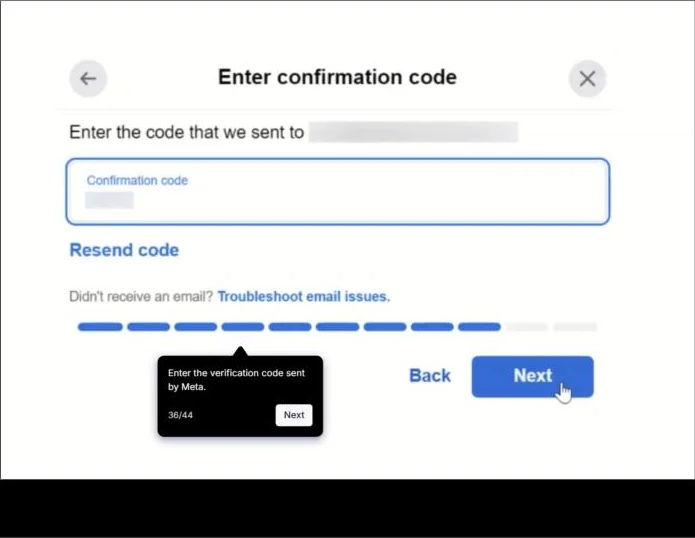 Enter the code from Meta's email to submit.
How long does Meta Business Verification take?
The Security Centre says a review should take about two working days. Some businesses are approved in minutes, and Meta allows itself up to 14 working days. Meta emails you and notifies you in Business Suite when it decides.
To check the status at any time, go back to Settings → Security Centre. While Meta is reviewing, the Business verification box shows In review; once approved, it shows your business as verified.
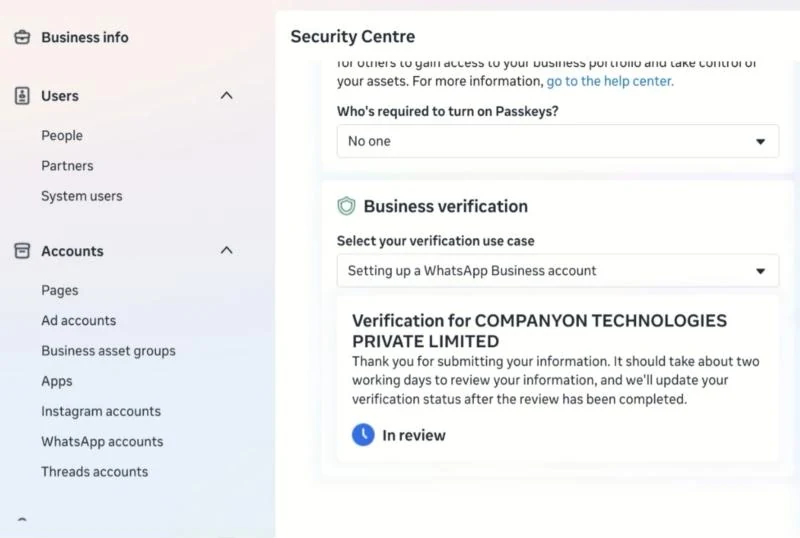 Track your status in the Security Centre.
Why does Meta reject business verification?
- The names don't match. The business name you typed differs from the document, even slightly ("Sharma Traders" vs "Sharma Trading Co."), or you used a trade name instead of the legal name.
- The address or phone number isn't on the document. The document must show the same address or phone number you entered.
- Your website is missing, broken or doesn't show your legal name. Keep the site live and put the legal business name in the footer.
- You used a free email address such as Gmail instead of an address on your business domain.
- The document isn't accepted for your country, is expired, edited, cropped, blurry or self-made without an official stamp or signature.
- The ID photo is unclear, or the person doesn't match the representative you selected.
If you're rejected, the Security Centre shows the reason. Fix that exact issue before you resubmit; sending the same details again gets the same answer.
After you're verified
Verification is done once per business portfolio, not per number, so every WhatsApp number in the portfolio benefits. Next steps:
- Raise your messaging limit. Meta reviews your message quality and can move you from 250 to 2,000 customers a day. See how to increase your WhatsApp messaging limit.
- Apply for the blue badge once you meet the other requirements. See how to get the WhatsApp green tick.
- Keep details stable. Changing your legal name or address later can mean verifying again.
With Mywa, you connect your verified number in a few minutes, and Meta bills messages to your own WhatsApp Business Account at its published rates, with no markup.